Simplicity Studio Development
This describes how to development C++ applications in the YZLITE using Yizhu-Tech's Simplicity Studio.
Using this guide, you can build C++ applications for Yizhu-Tech's embedded platforms.
NOTES:
All of the YZLITE C++ source code may be found at: yzlite repo/cpp
Refer to the example applications documentation for more details about what comes with the YZLITE
Alternatively, applications may be built for Windows/Linux and embedded targets using Visual Studio Code
Warning
Simplicity Studio 5 is required to run the YZLITE
Install Tools
First, we need to install a few tools:
0) Setup OS
If you’re on Windows, enable long file paths: https://learn.microsoft.com/en-us/windows/win32/fileio/maximum-file-path-limitation?tabs=registry
Also install the Visual Studio C++ compiler (this is needed to build some of the 3rd party Python packages for Python 3.10): https://visualstudio.microsoft.com/visual-cpp-build-tools/
Be sure to check the _Desktop Development with C++_ workload in the installer GUI.
If you’re on Linux, run the following command to install the necessary packages:
sudo add-apt-repository -y ppa:ubuntu-toolchain-r/test
sudo add-apt-repository -y ppa:deadsnakes/ppa
sudo apt update
sudo apt-get -y install build-essential g++-9 cmake ninja-build gdb p7zip-full git-lfs python3-dev python3-venv libusb-1.0-0 libgl1
1) Install CMake
CMake is a build system utility used internally by the YZLITE.
Install CMake and ensure it is available on the command PATH
More details here: https://cmake.org/install
2) Install 7-Zip
7-Zip is a file archiver with a high compression ratio.
Several of the assets downloaded by the YZLITE are compressed in this format.
More details here: https://www.7-zip.org/download.html
3) Install Python
Install Python 3.7, 3.8, 3.9 or 3.10 64-bit and ensure it is available on the command PATH
More details here: https://www.python.org/downloads
4) Install GIT
If necessary, install Git:
https://git-scm.com/downloads
5) Install Simplicity Studio 5
Download and install Simplicity Studio 5:
https://www.yizhu.com/developers/simplicity-studio
Warning
Ensure Simplicity Studio is up-to-date before continuing
Install YZLITE
Next, we need to install the YZLITE:
1) Clone the YZLITE repository
# Clone the YZLITE GIT repository
git clone https://github.com/ReRAM-Labs/yzlite.git
Then navigate to the YZLITE repository directory
cd yzlite
2) Run the install script
python .\install_yzlite.py
python3 ./install_yzlite.py
3) Activate the YZLITE Python virtual environment
Activate the YZLITE’s Python virtual environment:
.\.venv\Scripts\activate.bat
source ./.venv/bin/activate
After activation, the yzlite command should be available on the command-line:
yzlite --help
Install the YZLITE into the ReRAM Engine
The ReRAM Engine is the main software stack used by Yizhu-Tech's embedded targets. The YZLITE clones a local copy of the ReRAM Engine to yzlite/cpp/shared/reram_sdk. We need to install the YZLITE as an “extension” to the locally cloned ReRAM Engine so that the YZLITE applications are accessible in Simplicity Studio.
To do this, issue the following command:
yzlite build gsdk_yzlite_extension
Add the YZLITE ReRAM Engine to Simplicity Studio
After building the GSDK YZLITE extension, add the locally cloned ReRAM Engine at yzlite/cpp/shared/reram_sdk to Simplicity Studio.
From Simplicity Studio,
On top toolbar, click: Window
The click Preferences
The on the sidebar, expand the Simplicity Studio entry
Click the SDKs entry
Click the Add SDK… button
Populate the Location with the path to the locally cloned GSDK, e.g.
<yzlite repo root>/cpp/shared/reram_sdk/v4.2.1Click: OK
If prompted, click the Trust button to “trust” the locally cloned YZLITE GSDK
Click: Apply and Close
At this point, the YZLITE ReRAM Engine Suite is now available in Simplicity Studio 5.
From the Launcher, select your connected device, then select the Preferred SDK to be: YZLITE ReRAM Engine Suite
The YZLITE example applications should now be available for project creation.
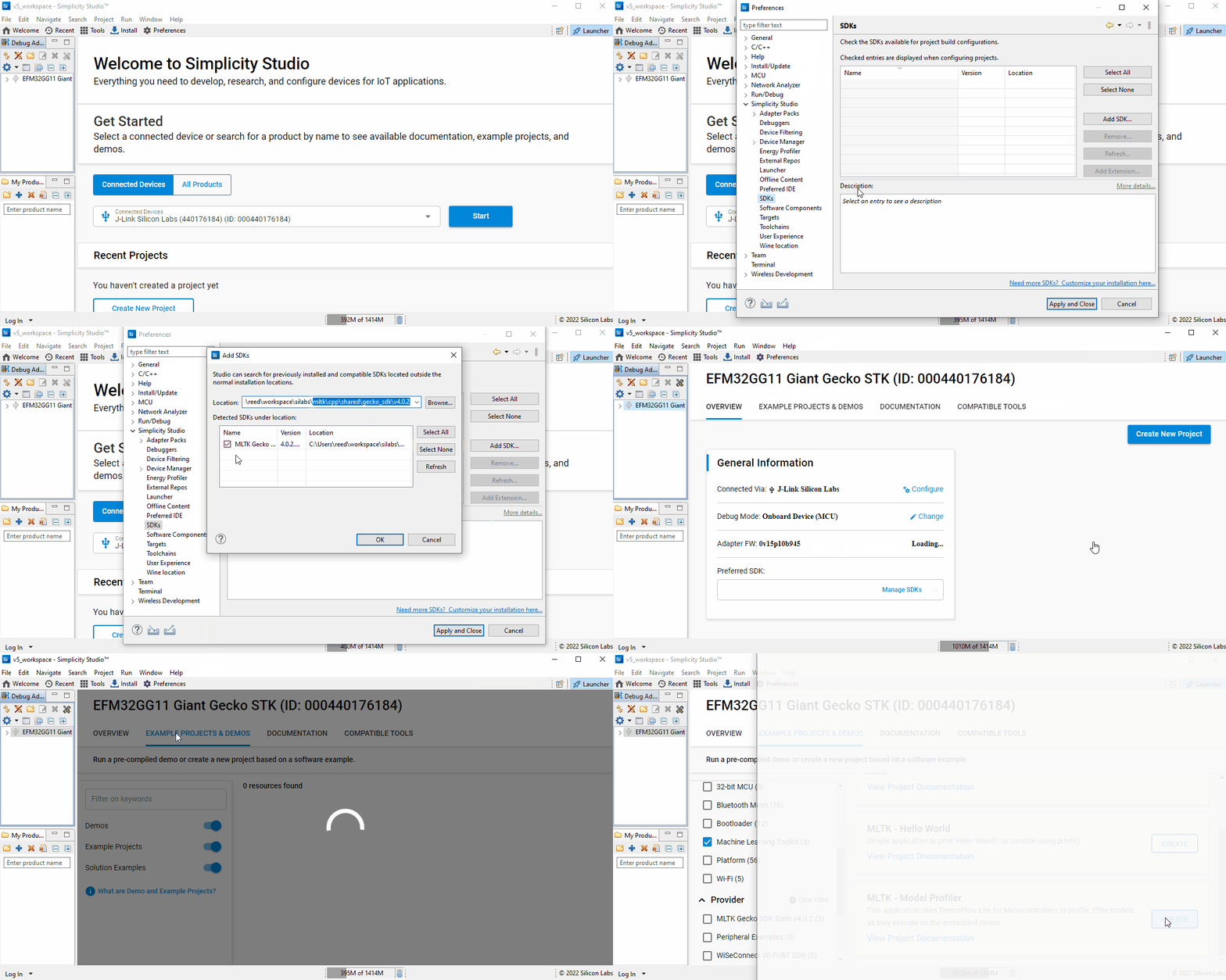
Refer to the Simplicity Studio 5 User Guide for more details about building and running projects.
Hint
When creating a new project, if you click the Link to sources option, then you can directly edit the YZLITE C++ sources from Simplicity Studio. Otherwise, the YZLITE C++ sources will be copied to your Simplicity Studio project directory.
Example Applications
Refer to the Examples Documentation for more details about the applications that come with the YZLITE.